Nov 27, 2025
A Day in the Life of a Conference Organizer: Real-Time Team Communication For Events You’d Actually Attend
 Jennifer Simonazzi
Every event looks polished on stage, whether that stage is a ballroom or a browser tab. Backstage it is duct tape, panicked texts, and a lot of spreadsheets. By the time the stream link is wrong, the moderator cannot find the run sheet, or catering is late, it is already too late. The mess happened three weeks ago, buried in Slack threads, lost in a dozen folders, or never followed up after a “circling back.” Organizers aren’t short on apps; they’re short on structure.
Pivot doesn’t remove the chaos, but it gives it walls. Each conference lives in its own workspace, complete with speaker docs, vendor contracts, and session schedules. Comments stay tied to content. Changes don’t vanish into inboxes. You still have to do the work, but you won’t have to go looking for it.
Whether your conference is fully virtual or hybrid, the same space holds the on-site logistics and the virtual track that runs in streaming rooms, chat rooms, and audio rooms.
9:00 AM — Spaces That Think Like Producers Do
A conference starts long before badges are printed. Before the speaker dinners are confirmed or the walkie-talkies get passed out. Most of the work happens in the buildup, and it usually lives across six apps, three inboxes, and at least one text thread that should’ve been an email.
In a Pivot space, everything gets a place that makes sense. No renaming files. No digging for the right Google Sheet. The organizer creates a structure that matches how the event actually works:
Pages hold sponsor decks, venue details, catering specs
Event blocks schedule each session, keynote, and panel
File uploads go straight into the context they support—no side folders
For virtual or hybrid conferences, the same space keeps your streaming room schedule, moderator scripts, Q and A guidelines, and backup links in one place so producers, hosts, and speakers stay in sync even across time zones.
10:30 AM — Speaker Updates Without Reply-Alls
A dozen speakers. A dozen files. Five missed emails. Three conflicting attachments. That’s usually how it starts.
With post rooms, it doesn’t have to unravel. Each speaker gets their own tagged thread where organizers, assistants, and content reviewers can drop everything in context:
Bios and headshots
Updated slides
Approved talking points
Last-minute travel changes
For virtual sessions, that same thread holds tech checks, streaming room links, and backup plans so nobody is hunting for the right URL five minutes before going live.
This is asynchronous collaboration the way it should be: searchable, organized, and not reliant on who saw what when. Pivot post rooms remove the chaos from community management platforms and make space for actual communication—without side chats, missed updates, or repeated asks.
12:00 PM — Chat Isn’t the Plan. But It Helps
You don’t want every update to turn into a meeting. But you also don’t want a 94-message thread about sandwich labels. Chat rooms in Pivot offer a middle ground: quick check-ins that stay tied to the actual work.
Use one room for AV timing, another for catering logistics, another as the backstage channel for your keynote streaming room. Each chat stays inside the event’s space, so context never breaks.
And because it’s built for work, not noise, you get:
File sharing right inside the chat
Emoji reactions for fast approvals
Reminders you can pin and actually act on
If someone misses something, they don’t need a recap—they just scroll up. That’s the power of real-time team communication that respects structure.
Unlike a typical Microsoft Teams alternative, Pivot isn’t another layer of chatter. It’s a record. And in the middle of a three-day conference, that difference matters.

2:00 PM — Databases with a Brain
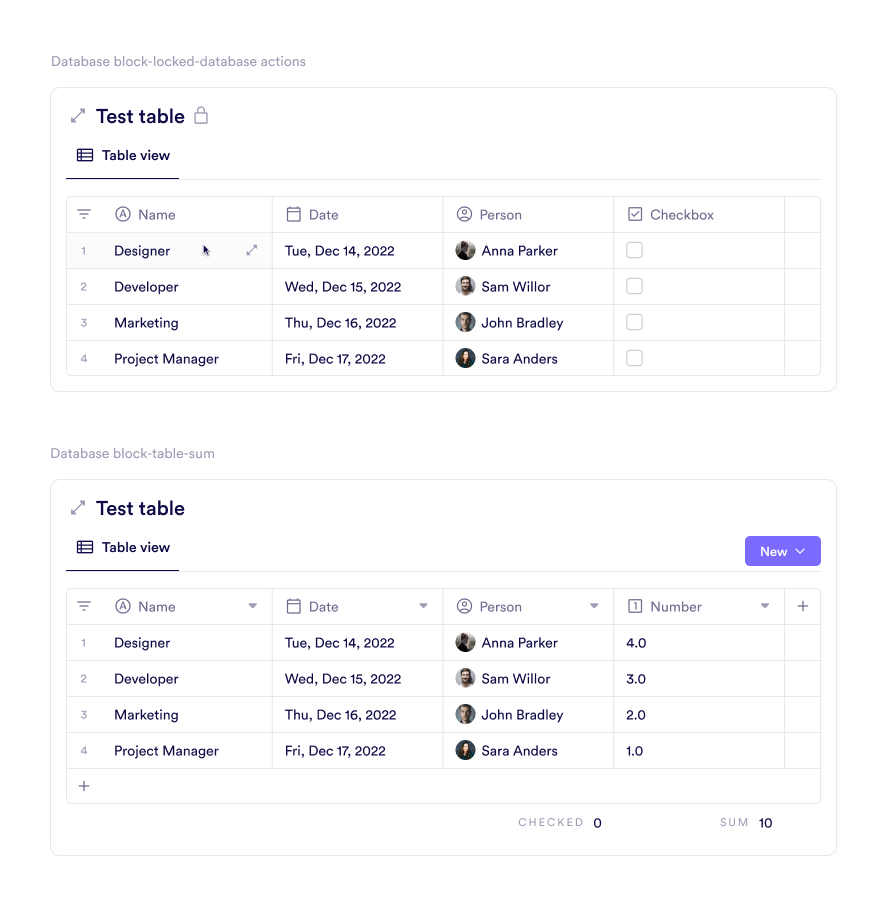
Spreadsheets get stale fast. Dates get missed. Notes vanish into hidden columns. Pivot’s database block doesn’t just hold vendor details; it lets you think through them.
One view shows deposits, contact info, and load-in hours. Another groups vendors by status: Confirmed, In Progress, Follow Up. If someone’s running behind, assign an owner. Add a tag. Filter by due date. Now you’re working with a live system, not a buried tab in a Google Sheet.
You don’t need formulas. You need to see what’s slipping.
You can:
Track vendor details, deadlines, and responsibilities
Tag items by type, urgency, or budget owner
Filter by timeline, contract status, or task owner
Add comments directly inside the row
This isn’t “project management software” in name only. It’s structure built to handle the flood. When someone texts you about the stage lights? You’ve already got the answer—column F doesn’t even enter the picture.
3:30 PM — Progress Without Paging Your Team
Nobody plans a conference alone, but too often it feels like it. A speaker’s waiting on edits. The sponsor still hasn’t approved their booth design. Catering wants to know if the final count is final-final. You could chase updates manually. Or you could let them surface on their own.
Pivot’s goal block shows what’s moving—and what’s stuck—without requiring daily pings. In board view, tasks shift visibly across “To Do,” “In Review,” and “Complete.” In calendar view, the next ten days write themselves. In timeline view, you see how much can actually get done before the AV techs start their dry run.
Used right, it’s a scoreboard. You’re not guessing. You’re managing.
You can:
Assign owners and due dates to every task
Watch approvals move forward without prompting
Track deadlines across sessions, sponsor deliverables, and logistics
Filter by phase, owner, or goal type
This is what task management best practices look like when applied to real work. It's also why asynchronous collaboration tools aren't just for remote teams anymore.
5:00 PM — Lights, Stream, Action For The Virtual Track
The keynote for the virtual track is ready. The speaker is live. The chat is moving. Now imagine all of that in one window, without flipping tabs or texting backstage on the side.
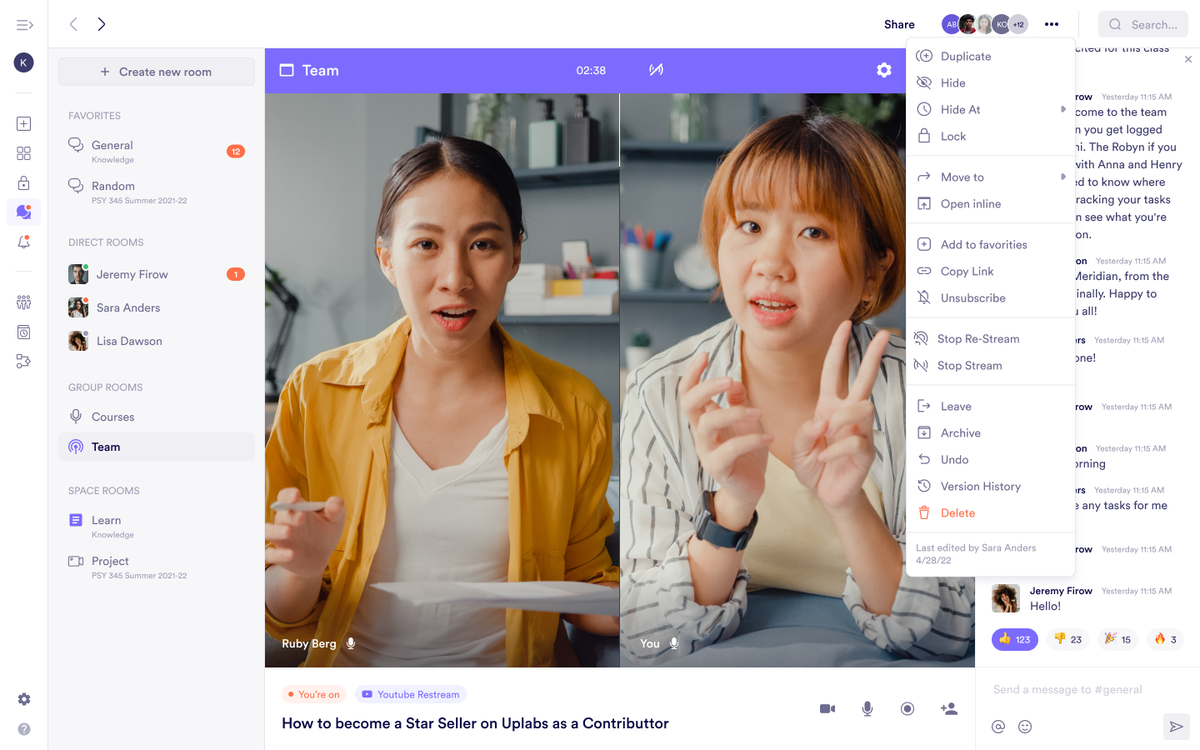
With streaming rooms in Pivot, virtual doesn’t mean fragile. You don’t need Zoom for the panel, Slack for the tech check, and YouTube for the archive. One room does the job. Side chat is built in, so you don’t need to open five things just to answer a question. Speakers can request the mic. Attendees can react. Hosts stay in control the entire time.
If you need to go beyond the room, restreaming to social is one click. No setup page. No back-end gymnastics. Just stream, engage, and get back to the rest of the show.
That’s why organizers use Pivot as a YouTube alternative. And it’s what real-time team communication actually looks like when the whole team is moving.
You can:
Host panels, AMAs, mixers, or sessions in one place
Allow speaker requests, audience reactions, and live side chat
Use built-in restreaming to simulcast events across platforms
Track who’s watching, speaking, and engaging—all without leaving the room
6:30 PM — Feedback You’ll Actually Use
By the time the lights go down and the stage is cleared, most organizers are already behind on feedback. The inbox is flooded. The surveys? Maybe half-filled. One vendor texted you their thoughts, and the speaker form is buried somewhere in a thread.
Pivot forms don’t sit in limbo. They connect to your event’s actual flow, not the chaos that follows it. Drop a form block into the same space that ran the day. Link it directly to the speaker’s post room. Filter NPS results inside a database instead of making a new spreadsheet.
This isn’t just good clean-up. It’s asynchronous collaboration tools doing their job. It’s also what best practices for async work look like when feedback isn't an afterthought.
Use Pivot forms to:
Collect attendee ratings per session
Capture speaker feedback linked to their Post Room
Log vendor reviews directly into a shared database
Filter by tag, time, or type to find what matters fast
No chasing. No inbox spelunking. Just feedback you’ll actually read before next year’s planning starts.
You Still Run the Show—You Just Don’t Have to Carry It Alone
Pivot doesn’t replace what you do; it backs it up with structure that doesn’t unravel mid-run-through. Instead of toggling between inboxes, spreadsheets, and Slack threads, everything sits where it should: speaker decks in post rooms, vendor notes in a database, show flows in a space built exactly the way you think.
You are still the one calling the shots, whether you are running a virtual summit, a hybrid conference, or an in-person show. Pivot just makes sure the pieces stay where you put them. Discover how HERE.

Jennifer Simonazzi
Content Writer
Share this post
Table of Contents
Subscribe to never miss out on updates and inspiration
Watch new Pivot tutorials, attend live training sessions, and get access to exclusive new features.
